
Want SEO
Top 10 Google Search Tricks: How to Google Like a Pro
Google processes billions of searches every day, helping people find answers, research topics, compare products and discover information across the web. However, getting the most useful results is not always as simple as typing a few words into the search bar. Broad searches can return thousands of pages, many of which may not answer the question you originally had.
The difference often comes down to how you search. Google includes several built-in search features and operators that allow you to refine queries, exclude irrelevant results, find exact phrases and search within specific websites. These techniques can make everyday searches more focused and help you locate information without spending unnecessary time browsing through unrelated pages. Whether you are a student researching a topic, a professional looking for reliable information or an SEO specialist analysing websites and competitors, understanding how to use Google Search effectively can improve the way you find and evaluate information.
In this guide, we explore ten practical Google search tricks, explain how each one works and show how you can use them to search more efficiently.
Why Should You Learn Google Search Tricks?
Most people use Google by entering a keyword or question and selecting one of the results. This works well for straightforward searches, but it can become inefficient when you need something specific. For example, searching for “SEO tools” could return product pages, comparison articles, advertisements, tutorials and general discussions. If you are specifically looking for free SEO tools, the results may not immediately match your requirements.
Google search operators and advanced search techniques help narrow down these results. Instead of repeatedly changing your search query, you can give Google more context about the information you want. These techniques are useful for everyday browsing, academic research, content planning, competitor analysis and technical SEO investigations. They do not guarantee that every result will be accurate or relevant, but they give you greater control over how you search.
Top 10 Google Search Tricks to Search Like a Pro
Most users type broad keywords into Google and sift through millions of irrelevant pages, missing the exact sources they need. By pairing simple symbols with advanced search operators, you can filter out noise, pinpoint specific file types or domains, and turn the search bar into a surgical research tool. Below are the ten essential tricks every power user relies on to find precise answers in seconds:
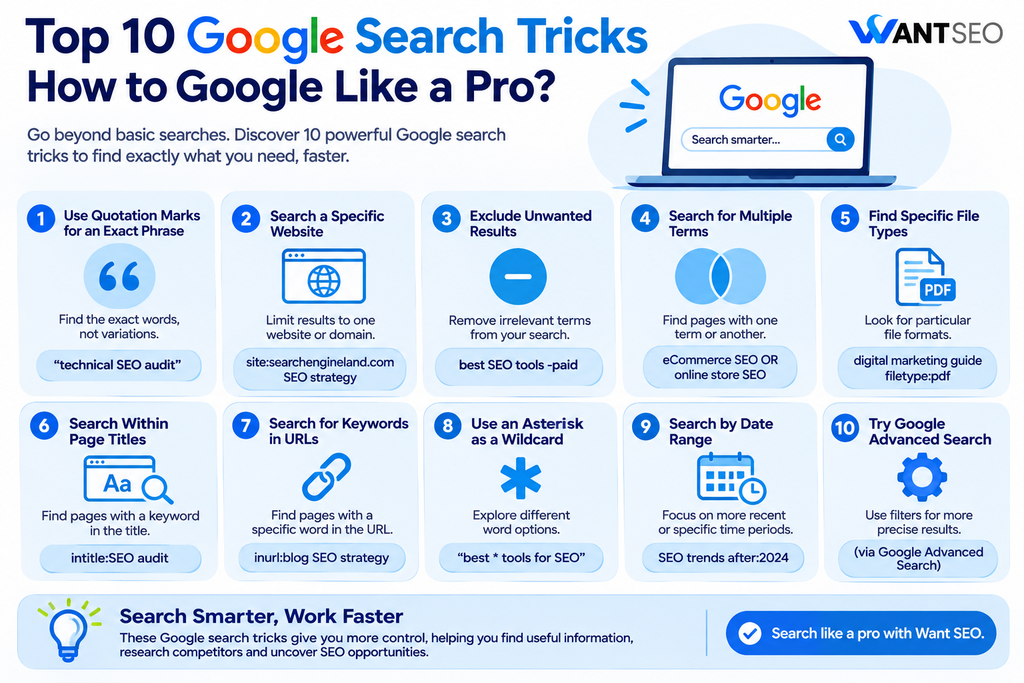
1. Use Quotation Marks to Find an Exact Phrase
One of the simplest ways to improve a Google search is to use quotation marks around a specific phrase. When you enter a query without quotation marks, Google can return pages that contain related terms and variations. This is useful for broad research, but it may not help when you are looking for an exact sentence, product name or particular expression. Quotation marks tell Google to look for the words together as an exact phrase.
Example: technical SEO audit
This helps narrow your results to pages containing that exact phrase rather than pages that simply mention technical SEO and audits separately. This trick is particularly useful when researching a specific topic, locating a reference, checking whether a phrase appears on a website or finding the original source of a quotation. SEO professionals can also use it to investigate how a particular keyword or phrase is used across different websites.
However, exact phrase searches can sometimes exclude useful pages that use slightly different wording. If your results are limited, try removing the quotation marks or searching for a shorter phrase.
2. Use the Site: Operator to Search a Specific Website
The site: operator allows you to restrict Google results to a particular website, domain or URL path. This is useful when you already know where the information is likely to be located but do not want to browse the entire website manually.
Example: site:searchengineland.com SEO strategy
This query asks Google to return relevant pages from Search Engine Land that discuss SEO strategy.
You can also search a domain without adding a keyword: site:wantseo.co.uk
This can show pages from the Want SEO website that Google has included in its search results.
For SEO professionals, the site operator has several practical applications. You can investigate competitor content, find existing articles on your website, identify potential internal linking opportunities and review whether particular sections appear in Google’s results. It is important to remember that a site: search does not provide a complete or guaranteed list of indexed URLs. If you need detailed indexing information for a website you manage, Google Search Console is a more appropriate source.
3. Exclude Unwanted Results Using the Minus (-) Operator
Sometimes Google returns results that are related to your search but do not match what you are looking for. The minus operator helps remove specific words or phrases from your results. Place a minus sign immediately before the term you want to exclude.
Example: best SEO tools -paid
This searches for information about SEO tools while excluding results associated with the word “paid”.
You could also search: jaguar cars -animal
This helps narrow the results towards the vehicle rather than information about the animal. The minus operator is particularly useful when a keyword has multiple meanings or when a search contains too many irrelevant results. It can also help with product research, content discovery and competitor analysis.
The key is to exclude only the terms that are genuinely irrelevant. Removing too many words can make your search unnecessarily restrictive and cause you to miss useful information.
4. Use OR to Search for Multiple Terms
If you want Google to find information related to one term or another, use the OR operator between your search phrases. This is helpful when two keywords describe similar topics or when you want to explore different ways of expressing the same search intent.
Example: eCommerce SEO OR online store SEO
This allows Google to return pages relevant to either phrase.
You can also combine OR with the site operator: site:example.com SEO OR CRO
This searches the specified website for content related to SEO or CRO. The OR operator is useful during keyword research because customers do not always use the same terminology when searching for a product, service or solution. Exploring related phrases can help you identify alternative topics and understand how different audiences describe similar requirements.
Remember to write “OR” in capital letters to make your intended search clearer.
5. Find Specific File Types Using Filetype:
Google can search for particular document formats, making it easier to find downloadable resources rather than standard web pages. The filetype: operator allows you to specify the type of file you want to find.
Example: digital marketing guide filetype:pdf
This searches for PDF documents related to digital marketing.
You can also combine it with the site operator: site:example.com filetype:pdf SEO
This looks for SEO-related PDF documents associated with the specified website. The technique is useful when researching industry reports, academic papers, presentations, downloadable guides and technical documentation. Students and researchers can use it to locate published resources, while marketers can explore reports and guides produced by industry websites.
Common file formats include PDF, DOCX, XLSX and PPTX. However, Google may not index every file or document, so the absence of a result does not necessarily mean the file does not exist.
6. Search Within Page Titles Using Intitle:
Page titles help describe what a webpage is about. If you want to find pages with a particular word or phrase in their titles, you can use the intitle: operator.
Example: intitle:SEO audit
This searches for pages with “SEO” in the title.
You can make the search more specific by combining it with other operators: site:example.com intitle:keyword research
This looks for pages on the specified website that include “keyword research” in their titles. For SEO professionals, this can be useful when researching how competitors approach particular topics. You can identify articles targeting a subject, review their titles and understand how different websites organise their content around specific search terms.
It can also support content planning by helping you discover existing resources on a topic before creating another article. However, finding a keyword in a page title does not tell you how well that page performs. You would need additional research to assess its visibility, relevance and organic performance.
7. Search for Keywords Within URLs Using Inurl:
The inurl: operator helps you find webpages containing a particular word or phrase in their URL.
For example: inurl:blog SEO strategy
This searches for pages with “blog” in their URL that are relevant to SEO strategy.
You can also combine it with the site operator: site:example.com inurl:blog technical SEO
This can help locate technical SEO articles within a website’s blog section. For digital marketers, this is a useful way to investigate website structures and discover how businesses organise their content. You may also use it to find specific page types, such as product categories, resources or case studies.
However, URL structure alone does not determine whether a page is valuable or well optimised. Treat the results as a starting point for further investigation rather than a measure of website quality.
8. Use an Asterisk (*) as a Wildcard
The asterisk symbol can act as a placeholder for missing words within a search phrase. This is useful when you remember part of a sentence but cannot recall the exact wording, or when you want to explore different variations of a phrase.
Example: best * tools for SEO
The asterisk allows Google to interpret the missing part of the phrase and return potentially relevant variations.
You could also try: how to improve * performance
This may help you discover pages discussing different types of performance improvements. The wildcard technique can be useful for content research, locating remembered phrases and exploring related search language. It is not a substitute for proper keyword research, but it can help uncover useful variations when you are exploring a topic.
9. Search Within a Specific Date Range
When researching current information, the publication date can make a significant difference to the usefulness of your results. Google provides date filtering options that allow you to narrow results to a selected period. After performing a search, use the search tools and date options where available to select a relevant time range.
For example, if you are researching changes in Google’s search features, you may want to focus on information published within the last year rather than older articles. You can also use date-related search operators in certain queries, but Google’s date interpretation is not always a reliable substitute for its built-in filtering tools.
This technique is particularly useful for researching industry developments, product updates, regulations, software documentation and SEO news. It helps reduce the likelihood of relying on outdated information when a topic changes frequently. One important consideration is that Google’s displayed dates may not always represent the original publication date. Check the source itself before treating a result as recent or authoritative.
10. Use Google Advanced Search for More Precise Results
Not every search needs to be built manually using operators. Google also provides an Advanced Search page that allows you to refine searches through a series of available filters. Depending on the search type, you can narrow results by language, region, last update, file type, usage rights and other criteria.
For example, if you are researching a particular subject and only want English-language PDF documents, Advanced Search can help apply those conditions without requiring you to remember multiple search commands. It is particularly useful for people who do not regularly use search operators but still need more control over their results. You can access the feature through Google’s Advanced Search page and enter your requirements using the available fields.
How to Combine Google Search Tricks for Better Results
The real value of Google search operators becomes clearer when you combine them. You do not have to rely on a single command for every search. Multiple operators can work together to make your query more specific and reduce irrelevant results. For example, imagine you are researching technical SEO content published by a competitor.
You could enter: site:competitor.com intitle:”technical SEO” -jobs
This combines three techniques:
- site: restricts results to the competitor’s website.
- intitle: looks for the phrase in page titles.
- -jobs excludes results associated with job listings.
Similarly, if you want to find downloadable SEO resources from a particular website, you could search: site:example.com filetype:pdf SEO guide
These combinations are useful because they allow you to control the website, content format and subject of your search within a single query. Start with the simplest search that meets your needs. Add operators gradually if the results are too broad or do not provide the information you are looking for.
How SEO Professionals Can Use Google Search Tricks
Google search tricks are not just useful for everyday browsing. They can also support several practical SEO activities.
Competitor Content Research
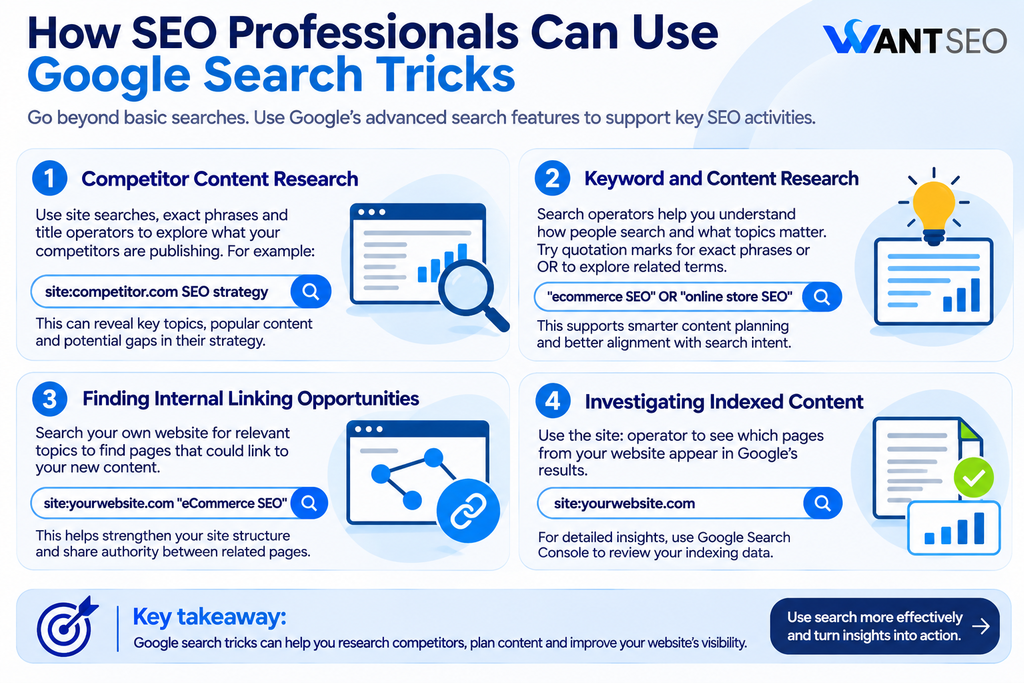
SEO professionals can use site searches, exact phrase searches and title operators to investigate competitor websites. For example, searching for a keyword within a competitor’s domain can reveal articles, guides and resources related to a particular topic. Reviewing these pages can help identify subjects competitors cover and questions their content addresses.
This provides useful context when planning your own content. However, competitor research should focus on understanding customer needs and identifying opportunities to provide better information, rather than simply copying existing pages.
Keyword and Content Research
Search operators can help explore how different keywords and phrases appear across websites. You can use quotation marks to find exact phrases, OR to explore related terms and wildcard searches to discover variations. These techniques can support initial research before using dedicated keyword research tools. The aim is to understand the language people use and identify topics that align with your audience’s search intent.
Finding Internal Linking Opportunities
If you have published a new article, searching your website for related terms can help identify existing pages that may provide relevant internal linking opportunities.
For example: site:yourwebsite.com “eCommerce SEO”
The results may highlight older articles that mention eCommerce SEO and could naturally link to your new resource. Review each page before adding a link. Internal links should help readers discover related information, not exist simply to increase the number of links on a page.
Investigating Indexed Content
The site: operator can provide a quick indication of which pages from your website appear in Google’s results. You can use it to investigate whether important sections are discoverable or whether certain URLs appear in search results. For more detailed information, Google Search Console should be your primary resource. Its indexing reports provide a clearer view of Google’s reported indexing status for your website.
Common Mistakes to Avoid When Using Google Search Operators
Search operators are useful, but they do not guarantee perfect results. Understanding their limitations helps prevent incorrect assumptions. One common mistake is using too many operators in a single query. Combining several filters can make a search so restrictive that it excludes relevant pages. Start with a broad query and add filters only when necessary.
Another mistake is assuming that every result is accurate or trustworthy. Google helps organise information, but it does not independently guarantee the quality of every webpage. Check the source, publication date, supporting evidence and the author’s expertise before relying on important information. You should also avoid treating search operators as replacements for specialist SEO tools. A site search can help you investigate content, but it cannot provide a complete technical audit, confirm organic traffic or accurately measure keyword performance.
Finally, remember that search operators can have limitations and may behave differently depending on the query. If a search does not return the expected results, try adjusting the wording or using Google’s Advanced Search filters.
Want SEO Expert Advice?
Knowing how to search Google more effectively can help you find information, investigate competitors and identify potential opportunities. However, turning those findings into meaningful SEO improvements requires a clear understanding of search intent, website performance and commercial priorities.
At Want SEO, we focus on identifying what matters most rather than recommending activity for its own sake. Whether you need to improve your website structure, refine your content strategy or understand where your organic search performance could improve, our approach starts with the decisions that support your wider business goals.
Looking for a clearer SEO strategy? Explore our SEO services to understand how we can help you prioritise the right improvements for your website.
Conclusion
Learning how to use Google Search like a pro is not about memorising dozens of commands. It is about understanding which search techniques can help you find the information you need with less effort. From quotation marks and the site: operator to file searches, date filters and advanced search commands, these ten tricks give you more control over your search results. For SEO professionals, they can also provide useful starting points for competitor research, content planning, internal linking and website investigations.
However, search operators are most valuable when used alongside good judgement and reliable data. Use them to investigate questions, explore opportunities and gather information, then assess what the findings actually mean before making decisions.
The goal is not to perform more searches. It is to find better information and use it effectively.
FAQs
1. What are the most useful Google search tricks?
Some of the most useful techniques include quotation marks for exact phrases, the site: operator for specific websites, the minus sign for excluding terms and filetype: for finding particular document formats.
2. How do I search for an exact phrase on Google?
Place quotation marks around the phrase you want to find. For example, searching “technical SEO audit” helps Google identify pages containing that exact phrase.
3. Can I search within a specific website using Google?
Yes. Use the site: operator followed by the website domain and your keyword. For example, site:example.com SEO searches for SEO-related results from that domain.
4. How do I exclude certain words from Google search results?
Place a minus sign immediately before the word you want to exclude. For example, SEO tools -paid helps remove results associated with paid tools.
5. Can Google search operators help with SEO?
Yes. They can support competitor research, content discovery, internal linking investigations and initial checks of indexed website content. However, they do not replace specialist SEO tools or Google Search Console.
6. Are Google search operators still useful?
Yes. Search operators remain useful for refining queries and finding specific information. However, their results can have limitations, so they should be used as research aids rather than definitive reports.