
Want SEO
How to Use Google Search for a Specific Site?
Finding specific information on a website can become challenging, particularly when it contains hundreds or thousands of pages. You might want to locate a particular article, check whether a product or category page appears in Google Search, find information about a specific topic or investigate how a competitor structures its website content. Manually browsing through multiple pages can take time, especially when you already know which website you want to search.
Fortunately, Google Search includes a simple but useful feature that allows you to narrow your results to a specific website or domain without relying on its internal search function. This makes it easier to find relevant information, explore website content and investigate particular pages directly through Google.
The feature is known as the site: search operator.
Whether you are conducting SEO research, checking indexed pages, analysing competitor content or simply looking for specific information, understanding how to use this operator can make your searches more focused and efficient. In this guide, we will explain how it works, explore practical search examples and show how you can use it to support better SEO decisions.
What Does Searching a Specific Website on Google Mean?
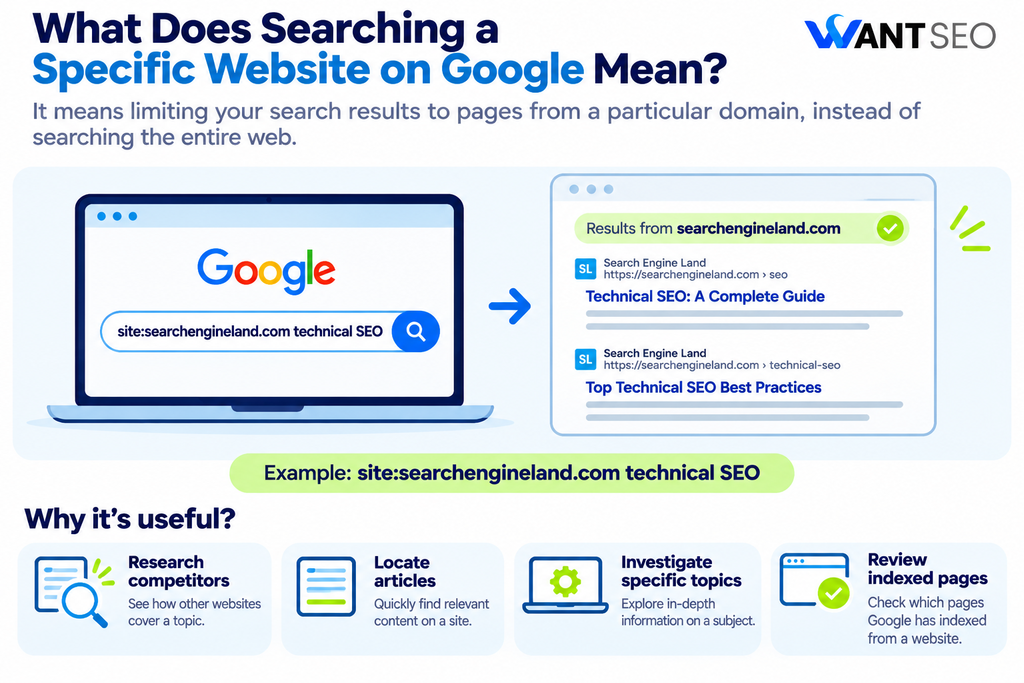
Searching a specific website on Google means limiting your search results to pages from a particular domain or website. Instead of asking Google to search the entire web, you tell it to return results from one chosen website. For example, if you want to find information about technical SEO on Search Engine Land, you can enter:
site:searchengineland.com technical SEO
Google search will return relevant pages from Search Engine Land that match your search query. This is particularly useful when a website has a large content library or when its internal search function does not provide the results you need. You can use this technique to research competitors, locate articles, investigate specific topics and review the pages Google has indexed from your own website.
What Is the Site: Search Operator in Google?
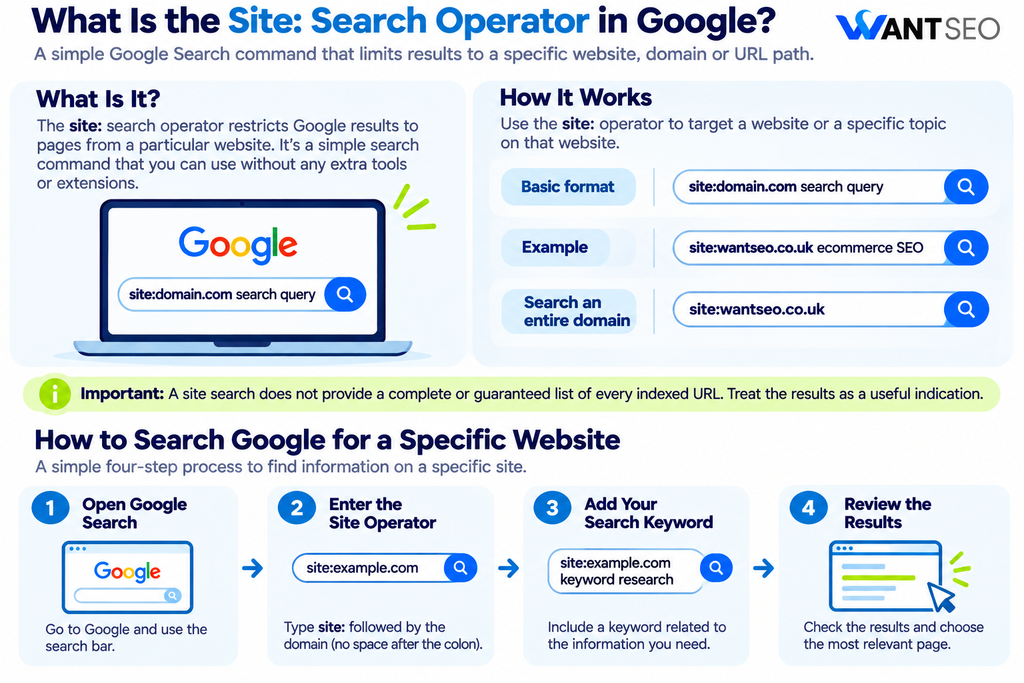
The site: search operator is a Google Search command that allows users to restrict results to a particular website, domain or URL path. It is one of the simplest Google search operators and can be used without any additional tools or browser extensions. The basic format is:
site:domain.com search query
For example:
site:wantseo.co.uk ecommerce SEO
This tells Google to look for relevant pages from the Want SEO website that relate to eCommerce SEO. You can also search an entire domain without adding a keyword:
site:wantseo.co.uk
This can return pages from the specified domain that Google has indexed. However, an important distinction is that a site search does not provide a complete or guaranteed list of every indexed URL. Google explains that search operators are subject to indexing and retrieval limitations, so the results should be treated as a useful indication rather than a definitive index report.
How to use Google Search for a Specific Website
Using the site search operator is straightforward. You only need a website domain and, optionally, a keyword related to the information you want to find. Follow these steps.
Step 1. Open Google Search
Visit Google and enter your search query into the search bar. You do not need to sign in or install any additional software.
Step 2. Enter the Site Operator
Type site: followed immediately by the domain you want to search. For example:
site:example.com
Avoid adding a space between site: and the domain.
Step 3. Add Your Search Keyword
If you are looking for a particular subject, add your keyword after the domain. For example:
site:example.com keyword research
This limits the search to relevant pages from that website.
Step 4. Review the Results
Google will display matching pages from the specified domain. You can review the page titles, descriptions and URLs to identify the most relevant result. If your search does not return useful results, try changing your keyword, using a broader phrase or removing unnecessary search terms.
Practical Examples of Using Google Site Search
The site operator becomes more useful when you understand how to apply it to different search requirements. Here are some practical examples.
1. Search for a Specific Keyword on a Website
If you want to find pages covering a particular topic on a website, combine the domain with your target keyword.
Example:
site:searchengineland.com voice search
This searches Search Engine Land for relevant content about voice search. It can be useful when researching how an industry publication covers a subject or looking for supporting information from a particular source.
2. Search for a Specific Page or Phrase
If you remember a particular phrase from an article but cannot find the page, combine the site operator with quotation marks.
Example:
site:example.com “technical SEO audit”
Quotation marks tell Google to look for the exact phrase. This can help locate a specific article, reference or page containing the wording you remember.
3. Search Within a Specific Website Section
You can also restrict your search to a particular URL path.
Example:
site:example.com/blog/ ecommerce SEO
This focuses the search on pages within the specified blog path. It is useful when you want to investigate blog content without including product pages, service pages or other website sections.
4. Find Specific File Types on a Website
Google also supports the filetype: operator, which allows you to search for particular file formats. You can combine it with the site operator.
Example:
site:example.com filetype:pdf SEO guide
This searches for PDF documents associated with the specified domain that relate to SEO guides. Other useful file types include:
- doc
- docx
- xls
- xlsx
- ppt
- pptx
This can help locate downloadable guides, research documents, presentations and other resources.
5. Find Pages Excluding a Specific Keyword
The minus operator allows you to exclude terms from your search.
Example:
site:example.com SEO -technical
This searches the specified website for SEO-related pages while excluding results associated with the term “technical”. It can help narrow results when a particular word is creating too much irrelevant information.
6. Search Multiple Words Using OR
The OR operator allows you to search for pages containing one term or another.
Example:
site:example.com SEO OR CRO
This looks for relevant pages associated with SEO or CRO on the specified website. It can be useful when researching related subjects without running multiple separate searches.
How to Use Google Site Search for SEO
The site: operator is particularly useful for SEO professionals because it provides a quick way to investigate website content and search visibility. Although it does not replace specialist SEO tools or Google Search Console, it can help identify potential opportunities and areas that deserve further investigation.
1. Check Which Pages Google Has Indexed
One of the most common uses of site search is checking whether Google has indexed pages from a website.
Enter:
site:yourwebsite.com
Google will return some pages associated with the domain that it has included in its search results. This can help you identify whether important sections of your website appear to be discoverable.
However, remember that the results are not an exact count of indexed pages. If you need more reliable information about your own website’s indexing status, use Google Search Console and its Page Indexing report.
2. Identify Duplicate or Similar Content
Websites with large content libraries can sometimes contain multiple pages covering very similar topics. For example, an eCommerce website might have several blog articles targeting variations of the same keyword. You can use site search to investigate this.
Example:
site:example.com “ecommerce SEO”
Review the results to identify pages that cover similar subjects. This does not automatically mean the pages are competing with each other. You need to assess their search intent, content purpose, keyword targeting and organic performance before deciding whether consolidation or restructuring is appropriate.
3. Find Internal Linking Opportunities
Internal links help users and search engines navigate related content across your website. The site operator can help identify existing pages that mention a particular topic. For example:
site:example.com “technical SEO audit”
If you have recently published an article about technical SEO audits, these results may help you identify older articles where a relevant internal link could be added. Before adding links, review each page to make sure the connection is useful to readers and fits naturally within the content.
4. Research Competitor Content
You can also use site search to investigate how competitors cover particular topics. For example:
site:competitor.com “product page optimisation”
This can help you find competitor articles, guides and resources related to product page optimisation. Review the content to understand:
- Which topics competitors cover.
- How they structure their articles.
- What questions they answer.
- Which related subjects they include.
- Whether there are useful content gaps.
The objective should be to understand what information customers need, not simply reproduce what competitors have published.
5. Find Opportunities for Content Improvements
Searching your own website for specific topics can reveal content that may need updating or expanding. For example, if you search:
site:example.com “keyword research”
You may discover several articles discussing keyword research from different perspectives. Review whether each page serves a distinct purpose. If multiple articles overlap significantly, consider whether their content strategy needs refinement. This can help prevent unnecessary content production and keep your website organised around meaningful topics.
Advanced Google Search Operators to Use Alongside Site:
The site operator becomes even more useful when combined with other Google search commands. Here are some additional operators worth understanding.
| Search Operator | What It Does | Example |
| site: | Restricts results to a website or domain | site:example.com SEO |
| ” “ | Searches for an exact phrase | site:example.com “SEO audit” |
| – | Excludes a word or phrase | site:example.com SEO -technical |
| OR | Searches for either of two terms | site:example.com SEO OR CRO |
| filetype: | Finds specific file formats | site:example.com filetype:pdf |
| intitle: | Looks for a term in page titles | site:example.com intitle:SEO |
| inurl: | Looks for a term in page URLs | site:example.com inurl:blog |
You do not need to use every operator for every search. Choose the combination that matches the information you want to find.
Common Mistakes to Avoid When Using Site Search
Although the site operator is simple, there are a few mistakes that can affect the usefulness of your results.
1. Adding a space after site: The domain should immediately follow the colon.
Incorrect: site: example.com SEO
Correct: site:example.com SEO
2. Using the wrong domain: If you want to search a specific subdomain, make sure you enter the correct address. Searching example.com and searching blog.example.com may return different results.
3. Assuming every page will appear: Google does not guarantee that a site search will display every indexed URL. Use Search Console for more detailed indexing information about websites you manage.
4. Using too many search terms: Adding too many keywords can make your query unnecessarily restrictive. Start with a simple search and narrow the results gradually.
5. Treating search results as an SEO audit: A site search is useful for initial investigation, but it cannot confirm technical issues, ranking performance, organic traffic or whether two pages are genuinely competing. Use the appropriate SEO tools to investigate further.
How Want SEO Can Help You Use Google Search for Better SEO Decisions
Google search operators can provide useful insights, but knowing how to interpret the results is what makes them valuable. At Want SEO, we use search research as part of a wider approach to understanding website performance, identifying content opportunities and prioritising improvements that support commercial objectives. This can include:
- Website indexing reviews: Investigating whether important website sections and pages appear in Google’s search results.
- Competitor content research: Reviewing how competing websites cover relevant topics and identifying areas where your content could provide greater value.
- Content gap analysis: Finding subjects, questions and search intents that your existing website may not address effectively.
- Internal linking opportunities: Identifying relevant pages that could strengthen connections between related content.
- Content overlap reviews: Assessing whether similar pages serve distinct purposes or require consolidation.
- SEO strategy and prioritisation: Turning research findings into practical recommendations based on their potential value to your business.
We do not recommend making changes simply because a search operator reveals something unusual. Every finding needs to be reviewed in context before deciding whether action is worthwhile.
Want a clearer understanding of what your website should prioritise? Explore Want SEO’s services and discuss with our team how a more structured SEO approach can support your business goals.

Conclusion
Searching Google for a specific website is straightforward once you understand the site: operator. By combining it with relevant keywords, exact phrases and other search commands, you can locate information, investigate website content and identify potential SEO opportunities without relying entirely on specialist tools. For SEO professionals and website owners, it is a useful starting point for checking indexed content, researching competitors, reviewing internal linking opportunities and understanding how websites organise their information.
However, site search should be treated as an investigative tool rather than a complete SEO analysis. Use its findings alongside Google Search Console, website analytics and a wider understanding of search intent before making important decisions. The value is not in running more searches. It is in using the information to identify what deserves attention.
FAQs
1. How do I search Google for a specific website?
Enter site:domain.com followed by your keyword into Google Search. Google will return relevant results from the specified website.
2. Can I search a specific page or section of a website?
Yes. Add the relevant URL path after the domain, such as site:example.com/blog/ SEO, to focus your search on a particular website section.
3. Can I use Google site search to check indexed pages?
Yes. Enter site:yourwebsite.com to see pages from your domain that appear in Google’s results. However, this does not provide a complete or guaranteed list of indexed URLs.
4. How do I search for an exact phrase on a website?
Use quotation marks around your phrase. For example, site:example.com “technical SEO audit” searches for that exact phrase within the specified website.
5. Can I use site search for competitor SEO research?
Yes. You can investigate competitor articles, topics, content structures and resources by combining their domain with relevant keywords.
6. Is Google site search a replacement for Google Search Console?
No. Site search is useful for quick investigations, while Google Search Console provides more detailed information about indexing, search performance and technical issues affecting websites you manage.