Want SEO
How to Use Google Search Console? A Complete Guide
Understanding how your website performs in Google Search is an important part of making informed SEO decisions. You may have published useful content, optimised product pages and improved your website structure, but how do you know whether Google can find your pages? Which search queries are bringing visitors to your website? Are important pages appearing in search results, or are technical issues limiting their visibility? Google Search Console helps answer these questions by providing information about how Google discovers, crawls, indexes and displays your website in search results. It also gives website owners access to performance data, indexing reports and tools for investigating individual URLs.
Whether you manage an eCommerce website, publish content or oversee an SEO strategy, learning how to use Google Search Console can help you understand what is happening across your organic search presence. More importantly, it can help you identify which improvements deserve attention.
In this guide, we explain how Google Search Console works, how to set it up and how to use its main reports to support a more structured SEO strategy.
Key Takeaways
- Tracks Pre-Click Search Visibility: Unlike standard analytics tools that measure on-site user behaviour, Google Search Console reveals how your pages perform inside search results through clicks, impressions, CTR, and average position.
- Relies on Proper Setup and Sitemaps: Choosing between a Domain or URL-prefix property, verifying ownership, and submitting an XML sitemap helps Google efficiently discover your most important URLs.
- Diagnoses Indexing and Technical Issues: Tools like the Page Indexing report and URL Inspection show which pages appear in Google’s index and explain why valuable URLs might be excluded or blocked.
- Prioritises High-Impact SEO Actions: Combining search performance data with your commercial objectives helps you focus updates on pages and queries that drive meaningful traffic rather than chasing vanity metrics.
What Is Google Search Console?
Google Search Console (GSC) is a free tool provided by Google that helps website owners monitor and understand their website’s presence in Google Search. It provides information about search performance, indexing status, technical issues and how Google interacts with website pages. Unlike analytics platforms that focus on what visitors do after arriving on your website, Google Search Console provides information about what happens in Google Search before someone clicks through to your site.
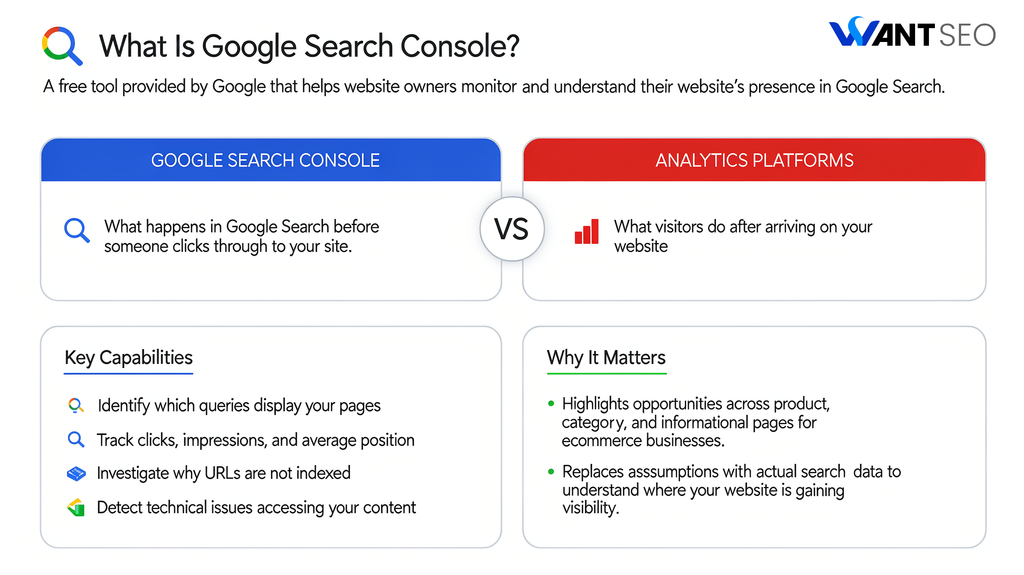
For example, you can use it to identify which queries display your pages, how many clicks those pages receive, how often they appear in search results and their average position. You can also investigate why particular URLs are not indexed or whether Google has encountered problems accessing your content. For eCommerce businesses, this information can help highlight opportunities across product pages, category pages and informational content. Instead of relying on assumptions about organic performance, you can use actual search data to understand where your website is gaining visibility and where further investigation may be worthwhile.
Why Is Google Search Console Important for SEO?
Google Search Console is useful because it connects website performance with the way Google discovers and presents your content. It helps you understand whether your SEO work is supporting visibility and whether technical issues may be preventing important pages from appearing in search results. One of its main benefits is that it provides search performance data directly from Google. You can see which queries generate impressions and clicks, identify pages that attract organic search interest and review how performance changes over time.
It also helps you investigate indexing problems. A page may be published and accessible to visitors but still not appear in Google’s index. Search Console provides reports that can help explain whether Google has discovered the URL, crawled it or excluded it from indexing.
Another important benefit of Google Search Console is prioritisation. Rather than making changes across your entire website without a clear reason, you can use Search Console data to identify specific pages, queries or technical issues that deserve further attention. However, Search Console does not provide every answer. It does not show all ranking factors, guarantee indexing or replace a complete SEO audit. Its value comes from combining its data with an understanding of your website, audience and commercial objectives.
How to Set Up Google Search Console
Before using the reports, you need to add your website to Google Search Console and verify that you own or manage it.
Step 1. Open Google Search Console
Visit the Google Search Console website and sign in using your Google account. If you have not used the platform before, you will be asked to add a property representing the website you want to monitor.
Step 2. Choose Your Property Type
Google Search Console provides two main property options: Domain and URL-prefix.
- A Domain property covers all URLs across the domain, including different subdomains and protocols. For example, it can include both HTTP and HTTPS versions, as well as www and non-www versions.
- A URL-prefix property covers only URLs that begin with the specific address you enter. For example, adding “https://www.example.com/” does not automatically include the non-www version or other protocols.
A Domain property is generally useful when you want a broader view of your website. A URL-prefix property can be helpful when you need to monitor a particular version or section of a site.
Step 3. Verify Website Ownership
Google needs to confirm that you have permission to access the website’s Search Console data. For Domain properties, verification is generally completed by adding a DNS record through your domain provider. For URL-prefix properties, Google offers several verification methods, including an HTML file upload, an HTML tag, Google Analytics or Google Tag Manager, where applicable.
Follow the instructions provided for your selected verification method. Once Google confirms ownership, you can access the reports associated with that property.
Step 4. Submit Your XML Sitemap
After verification, consider submitting your website’s XML sitemap through the Sitemaps report. A sitemap helps Google discover important URLs on your website. It is particularly useful for larger websites, eCommerce stores with extensive product catalogues and websites that regularly publish new content. Enter your sitemap URL, which may look like:
https://www.example.com/sitemap.xml
The exact location depends on how your website and content management system generate sitemaps. Submitting a sitemap does not guarantee that every listed page will be crawled or indexed. It simply provides Google with information about URLs you want it to discover.
Step 5. Allow Data to Collect
Once your property is verified, Search Console will begin providing information as Google processes your website’s data. Some reports may take time to populate, and not every report updates at the same frequency. It is therefore worth checking back regularly rather than expecting complete performance data immediately after setup.
How to Use Google Search Console: 8 Important Reports and Features
Google Search Console includes several reports and tools, but not all of them need equal attention. The most useful ones depend on your website’s size, technical setup and SEO objectives. The following features provide a practical starting point for understanding and improving organic search performance.
1. Use the Performance Report to Understand Search Visibility
The Performance report is one of the most useful areas of Google Search Console. It shows how your website performs in Google Search and provides information about the queries and pages associated with that visibility. The report includes four main metrics:
- Total clicks: The number of clicks your website receives from Google Search.
- Total impressions: The number of times your website appears in Google Search results.
- Average click-through rate (CTR): The percentage of impressions that result in clicks.
- Average position: The average position of your highest-ranking result for the selected reporting data.
You can review these metrics across different dimensions, including queries, pages, countries, devices and search appearance in the Google Search Console. For example, suppose one of your eCommerce category pages receives a high number of impressions but relatively few clicks. This may suggest that the page is appearing for relevant searches, but its search listing is not attracting enough attention. You could investigate whether the title accurately reflects the page, whether the description communicates a useful benefit and whether the search intent matches the content.
Similarly, if a page receives clicks for queries that are not closely related to its purpose, you may need to review its content and targeting through the Google Search Console. The important point is to interpret performance metrics together. A change in impressions, clicks or average position does not automatically explain why performance has changed. Look at the affected queries and pages before deciding what to improve.
2. Check the Page Indexing Report
The Page Indexing report helps you understand which pages Google has indexed and which URLs have not been included in its index. This is important because publishing a page does not automatically mean it will appear in Google Search. Google needs to discover and crawl a URL before deciding whether to index it. The report groups URLs according to their indexing status and provides information about reasons why certain pages may have been excluded. For example, you may find URLs marked as:
- Not found (404).
- Page with redirect.
- Excluded by a noindex tag.
- Alternate page with proper canonical tag.
- Crawled, currently not indexed.
- Discovered, currently not indexed.
Each status requires a different interpretation. A page with a valid redirect or a correctly implemented canonical tag may be excluded intentionally. That does not necessarily indicate a problem. On the other hand, an important product or category page that is not indexed may deserve further investigation.
For eCommerce websites, this report can help identify whether valuable product pages are being excluded, whether duplicate URL variations are creating indexing complications or whether unnecessary pages are being included in the website’s crawlable structure. Do not try to get every URL indexed simply to increase the number of indexed pages. Focus on making sure that important, useful and search-worthy pages can be discovered and considered for indexing.
3. Use URL Inspection to Investigate Individual Pages
The URL Inspection tool in the Google Search Console allows you to examine how Google understands a specific URL. You can enter a page address into the inspection bar to check its reported indexing status and access additional information about Google’s last crawl, canonical selection and other available details. For example, imagine you have published a new product category page but cannot find it in Google Search. Entering its URL into the inspection tool can help you determine whether Google has discovered the page and whether it is currently indexed.
You can also use the live URL test to check whether Google can access the page as it currently exists. If the page is eligible for indexing but has not yet been indexed, you may have the option to request indexing. However, this is a request for Google to recrawl the URL, not a guarantee that it will be indexed or appear in search results immediately. The tool is particularly useful after publishing important content, updating existing pages, resolving technical issues or investigating unexpected indexing changes.
4. Monitor Core Web Vitals
The Core Web Vitals report provides information about real-world page experience, based on how users experience eligible pages on your website. It focuses on three main metrics:
- Largest Contentful Paint (LCP): Measures how quickly the main content of a page loads.
- Interaction to Next Paint (INP): Measures how responsive a page is to user interactions.
- Cumulative Layout Shift (CLS): Measures unexpected visual movement while a page loads.
These metrics help identify potential user experience problems that may affect how visitors interact with your website. For example, an eCommerce product page may load its main image slowly, respond poorly when customers select product variants or shift its layout while additional elements appear. These issues can make the buying experience frustrating.
Search Console groups eligible URLs according to their performance status, helping you identify areas that may need attention. However, the report does not replace individual page testing. Use tools such as PageSpeed Insights alongside Search Console to investigate specific performance issues and understand what may be causing them.
5. Review the Sitemaps Report
The Sitemaps report allows you to submit XML sitemaps and review information about their processing. A sitemap helps Google discover URLs that are important to your website. This can be particularly useful for websites with large numbers of pages, regularly updated content or complex navigation structures.
After submitting a sitemap, you can review its status and check whether Google was able to process it. If a sitemap contains errors, investigate the underlying issue rather than repeatedly submitting the same file. For example, a sitemap may include URLs that redirect, return errors or are not intended to appear in search results. These issues can make your sitemap less useful.
For an eCommerce website, it is important to keep product and category sitemaps aligned with the pages you actually want Google to discover. Avoid including unnecessary URLs such as internal search results, shopping basket pages or duplicate variations. Remember that a sitemap supports URL discovery. It does not guarantee crawling, indexing or improved rankings.
6. Check the Links Report
The Links report provides information about links Google has identified pointing to and within your website. It includes external links from other websites and internal links between pages on your own domain. External link information can help you understand which websites reference your content and which pages attract links. Internal link information can show how your website’s pages are connected.
For example, if an important category page has very few internal links, you may want to review whether it is adequately connected to relevant product guides, blog articles and related categories. Similarly, if a useful informational article receives external links, you may want to review whether it supports a relevant commercial page through appropriate internal linking. The report is not a complete record of every link on the web, and it should not be treated as a direct measure of link quality. Use it to understand your website’s linking structure and identify opportunities to make important pages easier to discover.
7. Review the Manual Actions and Security Issues Reports
The Manual Actions report shows whether Google has applied a manual action to your website because of a violation of its spam policies. A manual action can affect the visibility of some or all of your website’s pages in Google Search. If one is reported, review the explanation carefully and address the underlying issue before submitting a reconsideration request.
The Security Issues report highlights problems Google identifies that could compromise website visitors, such as hacked content or harmful software. These reports are worth checking when investigating sudden visibility problems or receiving notifications from Google. Although many websites will not have any issues in these sections, they provide important information that should not be overlooked.
8. Review Search Appearance and Rich Result Reports
Depending on your website and the structured data types it uses, Google Search Console may provide reports showing how eligible pages perform in supported search features. These reports can help identify structured data errors and warnings that may affect a page’s eligibility for certain rich results. For example, an eCommerce website may use product structured data to communicate product details such as price and availability. Search Console can provide information about supported product-related enhancements where applicable.
If errors appear, review the affected URLs and compare the structured data against the actual content on the page. Do not add structured data simply to obtain a particular search appearance. It should accurately represent visible and relevant page information and follow Google’s guidelines.
How to Use Google Search Console for eCommerce SEO
For eCommerce businesses, Google Search Console can provide useful information about how products, categories and supporting content perform in organic search. However, the most valuable insights often come from connecting search performance with the commercial purpose of individual pages. Start by reviewing your highest-priority category pages. Look at the queries generating impressions and clicks, then consider whether those searches match the products and customer needs addressed by the page.
Next, review product pages that receive search impressions but relatively few clicks. Investigate whether their titles and descriptions clearly communicate the product, its main benefits and relevant differentiators. You can also compare performance across devices. If mobile search visibility is strong but engagement or conversions appear weaker in your wider analytics data, investigate the mobile shopping experience. Search Console can help identify search performance differences, while analytics and conversion data can help explain what happens after visitors arrive.
Finally, use indexing reports to check whether important product and category pages are eligible for indexing. If valuable pages are excluded, investigate the reason before creating more content or making wider technical changes.
The aim is to identify where search visibility, website structure and customer experience need attention. More impressions in the Google Search Console are not automatically more valuable if they do not attract relevant visitors or support meaningful commercial activity.
Common Google Search Console Mistakes to Avoid
Google Search Console provides useful data, but misinterpreting its reports can lead to unnecessary changes.
- One common mistake is treating average position as a fixed ranking. Search Console reports average position across the selected data, and the figure can vary depending on queries, locations, devices and search appearances. It should be used as a performance indicator rather than an exact ranking record.
- Another mistake is assuming that every excluded URL needs to be indexed. Some pages should remain outside Google’s index, including certain duplicate URLs, redirected pages and pages intentionally marked as noindex. Investigate the reason for exclusion before taking action.
- You should also avoid requesting indexing repeatedly whenever a page changes. A request does not guarantee faster crawling or indexing. Make sure the page is accessible, useful and technically eligible before submitting it for inspection.
- Finally, do not focus exclusively on clicks and impressions. These metrics help explain search visibility, but they do not tell you whether visitors are purchasing products, submitting enquiries or contributing to business growth. Combine Search Console with analytics and conversion data to understand the wider commercial picture.
How Often Should You Check Google Search Console?
There is no need to check every report every day. The appropriate frequency depends on the size of your website, how often it changes and whether you are currently investigating an issue. For a stable website, a monthly review can provide a useful overview of organic search performance, indexing changes and technical concerns. Google also recommends checking Search Console periodically and when you make changes to your website.
For websites publishing content frequently or managing large product catalogues, more regular checks may be worthwhile. You may also want to review performance after a major website migration, redesign, content update or technical SEO change. The most important thing is to establish a consistent review process. Compare relevant periods, investigate meaningful changes and prioritise issues according to their potential impact.
Want SEO Expert Advice?
Google Search Console provides valuable information, but understanding what to do with that information is where effective SEO strategy begins. A drop in clicks, an indexing issue or a page with high impressions may point towards an opportunity, but each situation needs to be assessed in its commercial context. At Want SEO, we use SEO data to support better decisions, not simply to produce more reports. We look at how technical performance, content relevance, and conversion opportunities work together to identify where effort is most likely to make a difference.
Our approach can help you:
- Identify the pages and search queries that deserve greater attention.
- Investigate technical and indexing issues affecting important website pages.
- Prioritise content improvements based on search intent and commercial relevance.
- Understand how SEO and CRO can work together to support business growth.
- Build a clearer action plan around your website’s actual needs.
If you want to understand what your search data is telling you and which improvements should come first, explore our SEO services or eCommerce SEO services.
Conclusion
Google Search Console is an important tool for understanding how your website performs in Google Search. From monitoring clicks and impressions to investigating indexing issues, reviewing Core Web Vitals and analysing internal links, it provides information that can support more informed SEO decisions. However, the value of the platform does not come from checking every report or trying to improve every metric. It comes from understanding what the data means for your website and identifying the changes that deserve attention.
Use Search Console as part of a wider SEO process. Combine its insights with website analytics, technical reviews and commercial objectives to focus on improvements that help the right pages reach the right audience.
FAQs
1. Is Google Search Console free to use?
Yes. Google Search Console is a free tool provided by Google. Website owners can verify their properties and access search performance, indexing and technical reports without paying for a subscription.
2. What is Google Search Console mainly used for?
It is used to monitor website performance in Google Search, review indexing status, investigate technical issues and understand which queries and pages generate search visibility.
3. How do I check if a page is indexed in Google Search Console?
Use the URL Inspection tool and enter the complete page URL. It will show the reported indexing status and provide further information about Google’s ability to access the page.
4. Does submitting a sitemap improve Google rankings?
No. A sitemap helps Google discover important URLs, but submitting one does not guarantee indexing or directly improve rankings.
5. How often should I check Google Search Console?
A monthly review is a reasonable starting point for many websites. Larger or frequently updated websites may benefit from more regular monitoring, particularly after significant technical or content changes.
6. What is the difference between Google Analytics and Google Search Console?
Google Search Console focuses on how your website performs in Google Search, including impressions, clicks and indexing. Google Analytics focuses on what visitors do after arriving on your website, such as browsing pages, completing purchases and submitting forms.